Bank Statement CSV Format — Standard Structure Explained
Learn the standard bank statement CSV format with proper date, description, debit, and credit columns. Download sample templates and convert your statements.
Use the same upload flow to convert files into clean, accounting-ready output with no merged cells.
Apply this workflow in seconds
Upload your file, review the extracted table, and export clean Excel or CSV output for accounting tools.
Drop Image / PDF
Or Ctrl+V paste
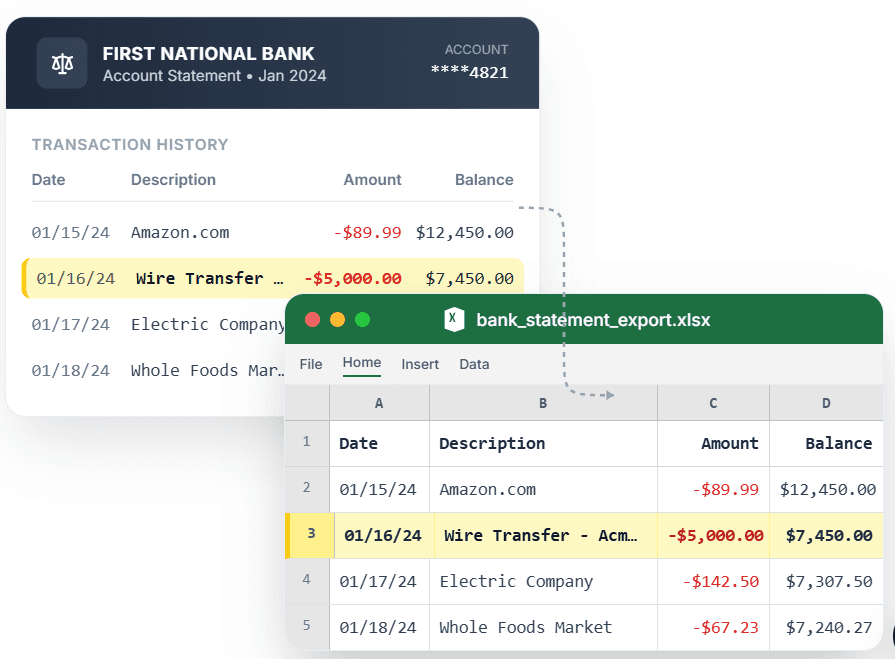
PDF → Clean Excel with separated columns, no merged cells.
A proper bank statement CSV format has every transaction on its own row with consistent columns: Date, Description, Debit, Credit, and Balance. Generic converters produce CSVs with merged cells, split rows, and amounts in unpredictable columns — breaking imports into accounting tools and scripts. CleanStmt converts your bank statement PDF into a standard CSV where dates stay formatted, descriptions do not split, and amounts land in stable fields. The result imports cleanly into QuickBooks, Tally, Excel, or custom analytics scripts.
What you need
- A bank statement in PDF, scan, or screenshot form
- Any device with a browser
- No account or credit card required
How it works — three steps, under a minute
- 1Upload your bank statement PDF, scan, or screenshot.
- 2Review transactions extracted into standard CSV format.
- 3Download CSV with stable Date, Description, Debit, Credit, Balance columns.
Why use CleanStmt for this
Built so the export is ready the moment you download it.
Consistent Column Names
Date, Description, Debit, Credit, Balance columns in the same order every time.
Import-Friendly Structure
No merged cells or split rows — imports cleanly into any accounting tool or spreadsheet.
Script-Ready Data
Stable format makes it easy to parse with Python, R, or Excel macros.
Who uses this workflow
Data Analysts
Get statement data in consistent CSV format for analysis scripts.
Developers
Parse transactions without fighting unpredictable CSV structures.
Accountants
Import statements into various tools with one standard CSV format.
Financial Controllers
Build automated reconciliation workflows with predictable structure.
CleanStmt vs generic converters
Generic tools export a file. CleanStmt exports a file you can actually use.
| Feature | Other Services | CleanStmt |
|---|---|---|
| Column consistency | Structure changes between banks | Same columns across all banks |
| Data quality | Merged cells and broken rows | One transaction per clean row |
| Script parsing | Custom logic needed per bank | Standard format works everywhere |
Frequently asked questions
What is the standard CSV format for bank statements?
Standard format has these columns: Date (YYYY-MM-DD or MM/DD/YYYY), Description (transaction text), Debit (outgoing), Credit (incoming), Balance (optional). Each transaction is one row with no merged cells.
Can I use the same CSV format for different accounting tools?
Yes. The standard format works with QuickBooks, Xero, Tally, Excel, and custom scripts because column names and structure stay consistent.
How are Debit and Credit amounts structured?
Debits (money out) go in the Debit column with positive values. Credits (money in) go in the Credit column with positive values. The other column is blank for each transaction.
Can I download a sample CSV template?
Yes. Convert any statement with CleanStmt and the exported CSV serves as a template showing proper Date, Description, Debit, Credit structure.
Is my financial data kept private?
Yes. Files process in memory and auto-delete within one hour, with no human review.