Convert Bank Statement PDF to OFX — Import into Quicken & Accounting Software
Convert bank statement PDFs to OFX format in seconds. Import clean transaction data into Quicken, Microsoft Money, or any OFX-compatible accounting software.
Use the same upload flow to convert files into clean, accounting-ready output with no merged cells.
Apply this workflow in seconds
Upload your file, review the extracted table, and export clean Excel or CSV output for accounting tools.
Drop Image / PDF
Or Ctrl+V paste
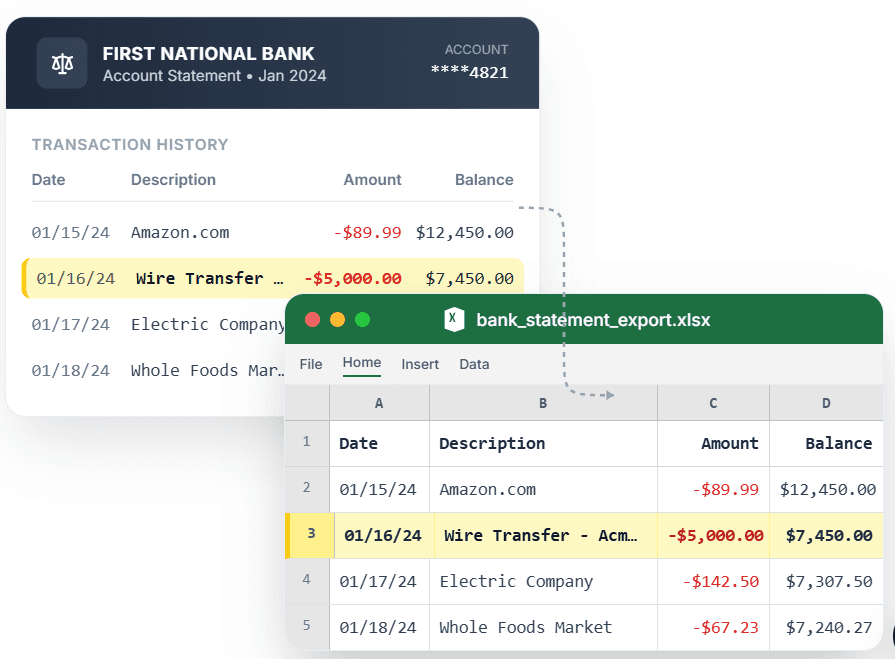
PDF → Clean Excel with separated columns, no merged cells.
Most banks only let you download OFX directly from online banking — and some charge for it, lock it behind a premium plan, or simply do not offer it. If you have a PDF statement and need an OFX file, CleanStmt bridges that gap. Upload your bank statement PDF, and CleanStmt extracts every transaction and generates a standard OFX 1.x file you can import directly into Quicken, Microsoft Money, GnuCash, or any software that accepts OFX. No manual entry, no reformatting — just a clean OFX file ready for import.
What you need
- A bank statement in PDF, scan, or screenshot form
- Any device with a browser — no software installation needed
- No account or credit card required to start
How it works — three steps, under a minute
- 1Upload your bank statement PDF, screenshot, or scanned image.
- 2CleanStmt extracts every transaction with date, description, and signed amount.
- 3Download the OFX file and import it into Quicken, GnuCash, or your accounting software.
Why use CleanStmt for this
Built so the export is ready the moment you download it.
Standard OFX 1.x Format
Generates spec-compliant OFX SGML accepted by Quicken, Microsoft Money, GnuCash, and most desktop accounting tools.
No Online Banking Required
Convert any PDF statement to OFX — even old statements your bank no longer provides for download.
Signed Amounts
Credits and debits carry the correct sign so your register balance updates accurately on import.
Who uses this workflow
Quicken Users
Import older or paper statements into Quicken without manual entry.
GnuCash Users
Convert PDF statements to OFX for seamless GnuCash transaction import.
Bookkeepers
Generate OFX files from client PDFs when the bank does not provide direct export.
Small Business Owners
Keep desktop accounting software up to date without retyping each transaction.
CleanStmt vs generic converters
Generic tools export a file. CleanStmt exports a file you can actually use.
| Feature | Other Services | CleanStmt |
|---|---|---|
| Source | Requires online banking OFX download | Any PDF, scan, or screenshot |
| Historic statements | Banks only keep 12–18 months online | Convert any statement regardless of age |
| Output | Manual entry or CSV reformatting | Ready-to-import OFX file |
Frequently asked questions
Can I convert a bank statement PDF to OFX without online banking access?
Yes. CleanStmt converts any PDF, scan, or screenshot of a bank statement into a standard OFX file — no online banking login required.
Which software accepts the OFX file CleanStmt produces?
The OFX 1.x SGML format is accepted by Quicken, Microsoft Money, GnuCash, KMyMoney, and most other desktop personal-finance and accounting tools.
Does the OFX export work with QuickBooks?
QuickBooks Desktop accepts OFX for bank import. QuickBooks Online uses a different bank-feed mechanism and does not import OFX files directly.
Are debits and credits signed correctly in the OFX file?
Yes. Credits are positive and debits are negative, matching the OFX convention so your account register balance is correct after import.
Is my financial data kept private?
Yes. Files are processed in memory and auto-deleted within one hour, with no human review of your statements.