Convert Bank Statement PDF to IIF — Import into QuickBooks Desktop
Convert bank statement PDFs to IIF format for QuickBooks Desktop import. Generate clean TRNS/SPL entries from any PDF, scan, or screenshot — no manual entry.
Use the same upload flow to convert files into clean, accounting-ready output with no merged cells.
Apply this workflow in seconds
Upload your file, review the extracted table, and export clean Excel or CSV output for accounting tools.
Drop Image / PDF
Or Ctrl+V paste
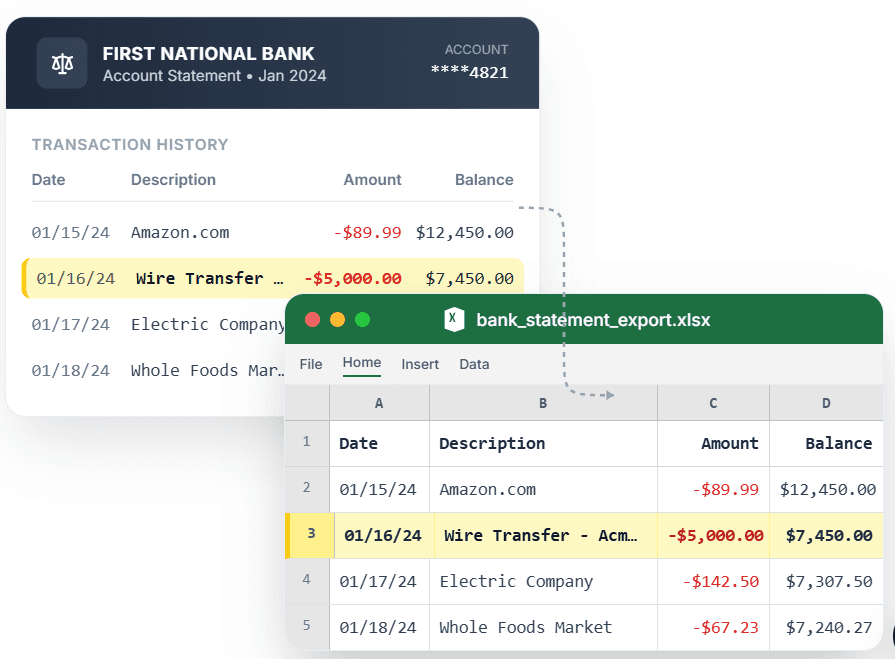
PDF → Clean Excel with separated columns, no merged cells.
IIF (Intuit Interchange Format) is the native import format for QuickBooks Desktop — but QuickBooks cannot read a PDF, and manually re-entering transactions is a time sink. CleanStmt converts your bank statement PDF directly into an IIF file with correctly structured TRNS and SPL entries, ready to import into QuickBooks Desktop. It works on any PDF statement, scanned document, or screenshot, and maps debits to the CHECK type and credits to DEPOSIT automatically — so your chart of accounts stays clean after import.
What you need
- A bank statement as a PDF, scan, or screenshot
- QuickBooks Desktop (Pro, Premier, or Enterprise)
- No account or credit card required to start
How it works — three steps, under a minute
- 1Upload your bank statement PDF, screenshot, or scanned image.
- 2CleanStmt extracts transactions and generates a QuickBooks-ready IIF file.
- 3Go to File → Utilities → Import → IIF Files in QuickBooks Desktop and import.
Why use CleanStmt for this
Built so the export is ready the moment you download it.
Correct TRNS/SPL Structure
Each transaction gets a TRNS entry for your bank account and an offsetting SPL entry — the structure QuickBooks Desktop expects.
Auto DEPOSIT / CHECK Typing
Credits become DEPOSIT, debits become CHECK, so transactions categorize correctly in your register.
Ask My Accountant Offset
Offset entries use the built-in Ask My Accountant account, so nothing posts to the wrong chart of accounts on import.
Who uses this workflow
QuickBooks Desktop Users
Import bank statement PDFs without keying each transaction manually.
Bookkeepers
Generate IIF files from client PDFs for batch import into QuickBooks Desktop.
Small Business Owners
Keep QuickBooks Desktop current when the bank does not offer IIF download.
Accountants
Reconstruct older periods in QuickBooks from archived PDF statements.
CleanStmt vs generic converters
Generic tools export a file. CleanStmt exports a file you can actually use.
| Feature | Other Services | CleanStmt |
|---|---|---|
| Source | Requires bank's IIF or QB download | Any PDF, scan, or screenshot |
| TRNS/SPL structure | Manual IIF authoring is error-prone | Auto-generated with correct field order |
| Transaction types | Must set DEPOSIT/CHECK manually | Auto-assigned from debit/credit sign |
Frequently asked questions
Can I import a bank statement PDF into QuickBooks Desktop without manual entry?
Yes. CleanStmt converts the PDF to an IIF file you can import via File → Utilities → Import → IIF Files in QuickBooks Desktop.
Does the IIF file work with all versions of QuickBooks Desktop?
IIF import is supported in QuickBooks Desktop Pro, Premier, and Enterprise. QuickBooks Online does not support IIF import.
What account does the offset SPL entry use?
The offset uses Ask My Accountant, QuickBooks Desktop's built-in uncategorized account, so you can re-categorize entries after import.
Can I set a custom bank account name in the IIF file?
The bank account name defaults to Checking. Make sure that account exists in your QuickBooks Desktop chart of accounts before importing.
Is my financial data kept private?
Yes. Files are processed in memory and auto-deleted within one hour, with no human review.