Bank Statement Excel Converter — Clean Spreadsheet Output
Convert bank statements to Excel spreadsheets with clean transaction rows. Every date, description, and amount in sortable columns — no merged cells.
Use the same upload flow to convert files into clean, accounting-ready output with no merged cells.
Apply this workflow in seconds
Upload your file, review the extracted table, and export clean Excel or CSV output for accounting tools.
Drop Image / PDF
Or Ctrl+V paste
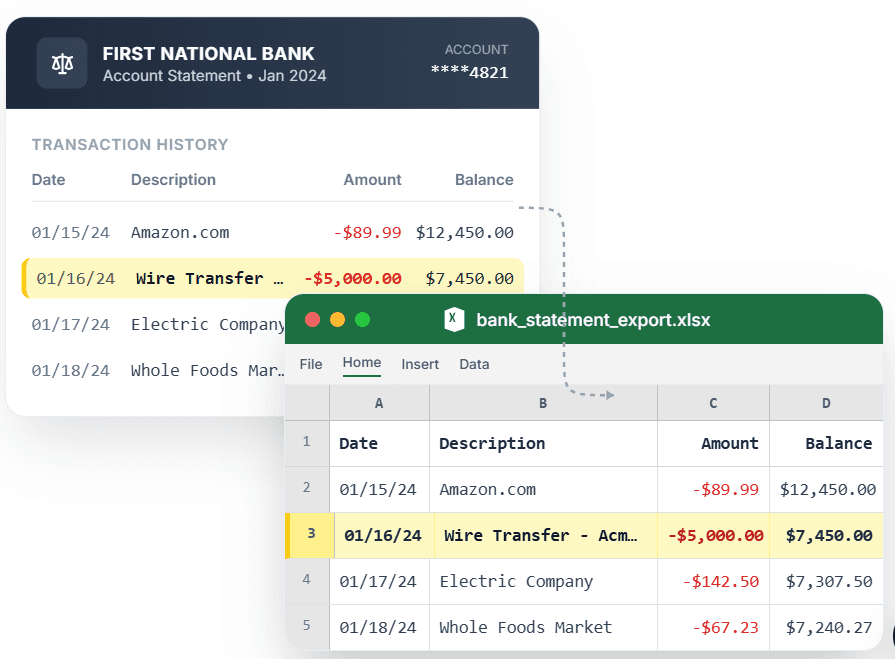
PDF → Clean Excel with separated columns, no merged cells.
Getting a bank statement into Excel should be straightforward — but copy-paste collapses transactions, and generic converters hand you merged cells that break sorting and formulas. CleanStmt converts your bank statement PDF to Excel properly: every transaction on its own row with date, description, and amount in stable columns you can sort, filter, and total immediately. Upload a PDF, scan, or screenshot, confirm the extracted rows, and download a ready-to-use .xlsx file with zero merged cells.
What you need
- A bank statement in PDF, scan, or screenshot form
- Any device with a browser
- No account or credit card required
How it works — three steps, under a minute
- 1Upload your bank statement PDF, scan, or screenshot.
- 2Review extracted transactions in clean Excel-ready rows.
- 3Download .xlsx file with sortable, filterable transaction columns.
Why use CleanStmt for this
Built so the export is ready the moment you download it.
Native Excel Format
Download a .xlsx file that opens directly in Excel with formatted columns — no copy-paste needed.
Sortable Columns
Date and amount columns are Excel-formatted, so sorting, filtering, and SUM work immediately.
Formula-Ready Structure
Zero merged cells means pivot tables, VLOOKUP, and other formulas work on first try.
Who uses this workflow
Small Business Owners
Analyze monthly spending in Excel without retyping transactions.
Financial Analysts
Build Excel models from statement data without cleaning cells first.
Bookkeepers
Turn client PDF statements into Excel spreadsheets in seconds.
Budget Trackers
Import bank transactions into Excel budgets without manual entry.
CleanStmt vs generic converters
Generic tools export a file. CleanStmt exports a file you can actually use.
| Feature | Other Services | CleanStmt |
|---|---|---|
| File format | Copy-paste or broken converters | Native .xlsx file, Excel-formatted |
| Cell structure | Merged cells break sorting | Zero merged cells, fully sortable |
| Formula compatibility | Requires cleanup before formulas work | Pivot tables and SUM work immediately |
Frequently asked questions
How do I get a bank statement into Excel?
Upload the statement PDF to CleanStmt. It extracts each transaction onto its own row with date, description, and amount columns, then exports a native .xlsx file.
Can I sort and filter the Excel file right away?
Yes. Every transaction is on its own row with consistent columns, so sorting, filtering, SUM, and pivot tables work immediately.
Does it work with scanned statements?
Yes. CleanStmt accepts PDFs, scans, and screenshots and produces the same clean Excel output.
Can I export to CSV instead of Excel?
Yes. You can download as Excel (.xlsx) or CSV, depending on your workflow.
Is my financial data kept private?
Yes. Files process in memory and auto-delete within one hour, with no human review.