Bank Statement to CSV Converter — QuickBooks Ready
Convert a bank statement to CSV for seamless import into QuickBooks, Xero, or any accounting software. Upload your PDF or scan, and get a clean CSV file with properly formatted dates, amounts, and descriptions — ready to import without manual cleanup.
CSV is the universal accounting format. Whether you need a bank statement CSV file for bookkeeping software or spreadsheet analysis, CleanStmt extracts every transaction with AI OCR and exports a structured CSV that imports cleanly the first time.
The fastest way to get a bank statement CSV file
Upload your statement and download a properly formatted CSV in seconds. No manual reformatting, no import errors, no data cleanup.
Convert bank statement to CSV free — no account or subscription required.
Drop Image / PDF
Or Ctrl+V paste
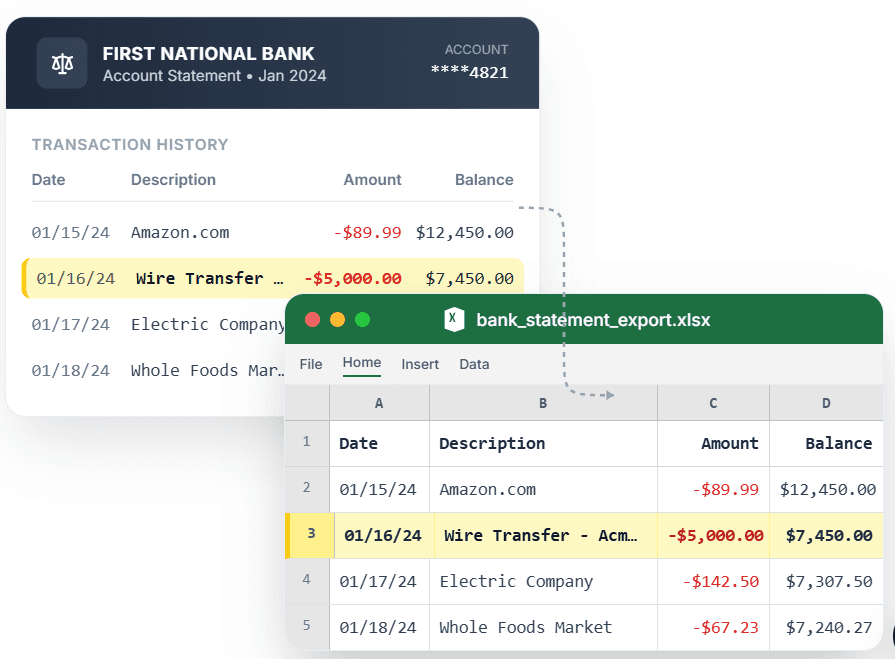
PDF → Clean Excel with separated columns, no merged cells.
Converting a bank statement to CSV by hand means retyping hundreds of transactions or wrestling with PDF converters that output scrambled data, wrong date formats, and amounts split across columns. When you import that messy CSV into QuickBooks or Xero, you spend hours fixing rejected rows and reconciling mismatched totals. CleanStmt is a dedicated bank statement to CSV converter: it reads your statement with AI OCR, recognizes transaction structure, and exports a clean CSV file with standardized columns — Date, Description, Debit, Credit, Balance. The resulting bank statement CSV file imports cleanly into accounting software without manual reformatting, so you go from upload to reconciliation in under a minute.
What you need
- A bank statement in any format (PDF, PNG, JPG)
- Any device with a browser
- No software install, no account signup
How it works — three steps, under a minute
- 1Upload your bank statement — PDF, scan, or photo.
- 2CleanStmt extracts transactions into Date, Description, Debit, Credit, and Balance columns.
- 3Download the CSV file, ready for QuickBooks, Xero, or spreadsheet import.
Why use CleanStmt for this
Built so the export is ready the moment you download it.
QuickBooks and Xero compatible
The exported CSV follows standard accounting column structure, so it imports cleanly into QuickBooks, Xero, FreshBooks, and other bookkeeping tools without manual field mapping.
Properly formatted dates and amounts
Dates export in YYYY-MM-DD format, amounts are numeric without currency symbols, and debits/credits stay in separate columns — no import errors or rejected rows.
AI OCR reads scanned statements
Whether your statement is a native PDF or a phone photo, CleanStmt extracts every transaction accurately, so scanned and digital statements produce identical CSV output.
Export to multiple formats from one upload
Need more than CSV? From the same extraction, export Excel (.xlsx), QIF, or OFX for different accounting workflows — no need to re-upload or re-extract.
Free and private
Convert bank statement to CSV free, with no account or credit card. Files are processed in memory and auto-deleted within one hour, with no human access.
Works with any bank
CleanStmt handles statements from Chase, Bank of America, Wells Fargo, and 200+ other banks — the AI OCR adapts to each bank's layout automatically.
Who converts bank statements to Excel
Bookkeepers & accountants
Convert client bank statements to CSV in bulk for QuickBooks import, eliminating manual data entry and import errors.
Small business owners
Turn monthly statements into CSV files for Xero or accounting software without paying for bank feed subscriptions.
Finance teams
Standardize statements from multiple banks into one CSV format for consolidated reporting and budget tracking.
Freelancers & contractors
Get bank statement CSV files for tax prep and expense categorization without subscription accounting software.
CleanStmt vs generic converters
Generic tools export a file. CleanStmt exports a bank statement to Excel that you can actually use.
| Feature | Other Services | CleanStmt |
|---|---|---|
| Date format | Inconsistent (MM/DD/YY or text dates that break imports) | Standardized YYYY-MM-DD, imports cleanly |
| Amount formatting | Currency symbols and parentheses cause import errors | Clean numeric values, separate debit/credit columns |
| Scanned statements | Fail or produce garbled CSV output | AI OCR reads scans and photos as accurately as native PDFs |
| Column structure | Merged columns or all data in one field | Proper Date/Description/Debit/Credit/Balance columns |
| Other export options | CSV only | Also exports Excel, QIF, OFX from same extraction |
Frequently asked questions
How do I convert a bank statement to CSV?
Upload your statement PDF or scan to CleanStmt, review the extracted transactions, and click Export to CSV. You get a properly formatted CSV file that imports cleanly into QuickBooks, Xero, or any accounting software.
Is the bank statement to CSV converter free?
Yes. CleanStmt converts bank statement to CSV free, with no account, no credit card, and no limit on statement size or transaction count.
What CSV format does CleanStmt export?
CleanStmt exports a standard accounting CSV with Date, Description, Debit, Credit, and Balance columns. Dates are in YYYY-MM-DD format, amounts are numeric, and the structure imports cleanly into QuickBooks and Xero without manual field mapping.
Can I convert a scanned PDF bank statement to CSV?
Yes. CleanStmt uses AI OCR, so scanned PDFs and phone photos convert to CSV just as accurately as native digital statements.
Does this work with QuickBooks and Xero?
Yes. The exported CSV follows the column structure expected by QuickBooks, Xero, FreshBooks, and other accounting software, so it imports without errors or manual reformatting.
Can I export other formats besides CSV?
Yes. From the same extraction, you can also export Excel (.xlsx), QIF, or OFX — handy if you need multiple formats for different workflows.