SCANNED STATEMENTS · OCR · EXCEL

Scanned Bank Statement to Excel — Reviewable OCR Results

Turn a scanned bank statement into an Excel report with editable transaction rows. Upload a scanned PDF or a clear photo in Single mode, check dates and amounts against the original, and download an .xlsx spreadsheet.

This workflow reads the transaction table rather than copying the page as a picture. A native PDF works too, but the guidance below focuses on image-based statements where selectable text is missing.

Scanned PDF, JPG & PNG input
Review and edit rows before export
Excel without merged cells
🔒 No signup🚀 Free to try📄 Source files not stored
→ OUTPUT PREVIEW
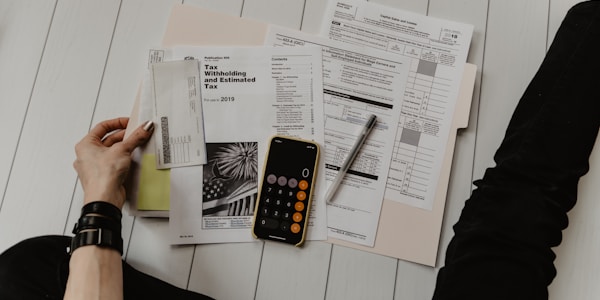
Financial statements on desk
DateDescriptionAmountBalance
01/15/24Amazon.com-$89.99$12,450
01/16/24Wire Transfer+$5,000$17,450
Drop Image / PDF
Or Ctrl+V paste • Max 10 MB

From scanned page to reviewable spreadsheet

1. Choose a clear scan

Upload a scanned PDF or image in Single mode. Keep table headings and all amount columns visible.

2. Check the transactions

Compare the recognized rows, dates, and balances with the original and correct mistakes before export.

3. Download Excel

Export an .xlsx report with structured transaction rows, available account context, and summaries.

Why scanned statements need a different Excel workflow

A scanned bank statement is an image of a page, even when the filename ends in .pdf. Selecting a transaction with your mouse may select nothing at all. Copying the page into a spreadsheet usually copies a picture, not separate dates, descriptions, debits, and credits. To turn a scanned bank statement to Excel into useful working data, the text has to be recognized and the transaction table interpreted before any cells can be created. This page is for that image-based case; if your PDF already contains selectable text, the general bank statement to Excel page covers the broader conversion workflow.

OCR is the character-reading part of the job. A statement also has columns, continuation lines, opening balances, and totals that should not become extra transactions. CleanStmt processes the document as a financial statement and presents recognized transaction rows for review. That distinction matters when a payment description wraps onto another line or a balance appears beside the amount. The result is a structured report you can inspect, not a claim that every character in a difficult scan was read correctly.

How to convert a scanned bank statement to Excel

Start with Single mode in the tool above. Choose one scanned PDF, JPG, or PNG, or paste a screenshot of your statement. Make sure the complete transaction table and its headers are visible. A PDF is charged by its page count; a photo or screenshot counts as one page. The available daily page allowance depends on your account, and a file that exceeds your remaining pages is rejected rather than partially converted. You do not need to rebuild the scan as a text PDF before starting a single-file conversion.

After extraction, inspect the recognized table before downloading. Check that the first and last transactions on each page appear, that wrapped descriptions stay with the correct row, and that debit and credit amounts have the correct signs or columns. You can edit a recognized transaction row when you find a mistake. Compare edits with the source rather than guessing an unclear digit; the bank's statement is the reference, not the spreadsheet preview. When the rows are ready, download Excel for a structured workbook with account context, a transaction table, and available summary information.

Prepare a readable scan or phone photo

A sharp source helps with bank statement OCR, especially on small decimals and faint minus signs. Photograph the whole page straight on, with even lighting and enough resolution to read the smallest line. Avoid glare, fingers over text, cropped table headers, or shadows across the amount columns. If you can read a date only by guessing, do not assume an OCR converter will resolve it reliably. Request a clearer statement from the bank or rescan the page before using the values for bookkeeping.

What the OCR-to-Excel output contains

CleanStmt extracts visible transaction information into reviewable rows. Depending on the scanned statement, the result may show dates, descriptions, debit and credit columns, running balances, account context, and statement summaries. A missing field in the original should remain missing; do not fill gaps with invented balances or descriptions. If a scan has repeated page headers or carry-forward totals, inspect the table to make sure they were not mistaken for additional transactions. An attractive spreadsheet layout is not proof that every transaction was captured.

The Excel download uses a report structure: account/header information, the recognized transaction table, and available summaries, separated for readability. It does not recreate the visual PDF and it does not generate a searchable PDF copy of your original scan. If your real goal is to preserve the original page design while making its text selectable, use a searchable-PDF OCR product instead. If your goal is to analyze or review transaction data in rows, the scanned bank statement to Excel workflow is the appropriate one.
Review checks before using the numbers

Compare the spreadsheet with the original statement page by page. Look for missing first or last rows, a split multiline merchant name, duplicated transactions at page breaks, and amounts placed in the balance column rather than debit or credit. Reconcile available opening and closing balances when the statement provides them, but remember that a plausible total alone cannot prove that every row was captured. Check unusual negative amounts, refunds, fees, and transfers individually before sharing the workbook.

The review table lets you correct recognized transaction values. Editing a row does not rewrite the bank's original statement or automatically recalculate its original printed summary. Preserve that distinction when a corrected row no longer matches the source summary, and record what you changed if another person will rely on the export. The tool supports review; it is not an audit certification, a source-of-funds verification service, or a substitute for checking a financial record with the issuer.

Single-file OCR versus paid text-PDF Batch

Use Single mode for a scanned bank statement to Excel conversion. Single accepts a supported scanned PDF or image and runs the image recognition flow. Batch is a different, paid workflow for multiple PDFs that already contain selectable transaction text. It extracts that text in the browser and sends text for processing; it does not perform batch OCR on image-only scanned PDFs. Uploading a scanned multipage PDF to Single is not the same thing as uploading several scanned PDFs to Batch.

If you have a folder of scanned statements, process them within the available Single-mode page allowance rather than expecting the Batch button to read all the images. For native text PDFs, eligible paid users can use Batch and its separate Excel download choices. Do not promise a merged workbook for scanned-file Batch input: that input is not supported. Keep account names and statement periods identifiable when reviewing separate results, especially if you plan to consolidate them outside the tool.

When another format is a better fit

For a PDF with selectable text, the general bank statement to Excel guide is the natural starting point. For a workflow that begins with any bank statement and branches into several export types, start at the main Bank Statement Converter. For details on extracting fields before choosing a download format, read the Bank Statement Extraction guide. These pages answer different tasks rather than offering separate copies of the same OCR pitch.

Privacy, limits, and what happens after export

The source PDF or image is sent for AI processing but is not stored by CleanStmt as an uploaded source file. Anonymous conversions are not saved as cloud history; eligible paid-access structured results may be saved and expire after seven days, and can be deleted earlier. AI-provider retention depends on provider terms, so do not interpret the history period as a blanket deletion promise for all processing. Read the Privacy Policy for the full distinction before uploading a sensitive account statement.

The free Single-mode allowance is measured in pages, not in the number of clicks or files. An anonymous user has a daily five-page allowance subject to identity safeguards; a signed-in free user has six pages per day. A paid balance is charged by pages instead of a daily free cap. Limits reset on the New York calendar day and do not roll over. If a scanned PDF has more pages than you have available, the whole conversion is declined; check the page count before uploading rather than expecting only the first pages to be processed.

Scanned bank statement to Excel: common questions

Can I convert a scanned bank statement PDF to Excel?

Yes. Use Single mode to upload a scanned PDF, review the recognized transaction rows against the original, and export an .xlsx report. Recognition depends on image clarity and layout; Batch requires PDFs with selectable text and does not OCR scanned files.

Does the scanner have to produce a text-searchable PDF?

No. Single mode accepts an image-based PDF for OCR. A clearer scan with complete table headings and uncropped amounts is easier to review than a blurred or partial page.

Can I use a photo or screenshot instead of a scanned PDF?

Yes. Upload a supported JPG or PNG or paste a screenshot in Single mode. Show the whole transaction table and check that the date and amount columns remain legible.

Is the output an editable Excel workbook or a searchable PDF?

The output is an editable Excel report with recognized transaction cells, not a searchable PDF replica of the scanned statement. Keep the original document for visual comparison.

Will OCR preserve the dates and monetary values exactly?

The export retains source date strings and converts supported Excel amount cells to numbers, but recognition can be wrong. Compare ambiguous dates, decimal points, signs, and balances against the original before relying on the workbook.

Can I batch-convert several scanned PDFs at once?

No. Batch supports eligible paid processing of text-based PDFs with selectable transaction text, not scanned-file OCR. Process scanned files in Single mode within your available page allowance.

Can I import the downloaded Excel directly into accounting software?

The workbook is a full report that may include account details and summary rows, not a universal transaction-only import template. Check the destination format, remove non-transaction rows when necessary, and review column and date mappings.

Are scanned statement images saved to my account?

CleanStmt does not store uploaded source images or PDFs. Eligible structured results may be saved for seven days and deleted sooner; anonymous results are not saved as cloud history. AI-provider retention is separate from this policy.

Start with one scanned statement

Use Single mode to recognize your statement, review its transaction rows against the original, and export the Excel report.

Try the scanned statement tool